

Anyone running a local business which is not listed on Google, is effectively invisible to the potential customers actively searching for what you offer. You need to build a Google Business Profile (GBP). It puts your business on Google Search and Google Maps at the exact moment someone nearby is looking for your products or services. The beauty is that the listing is free and it is powerful, and you can be sure your competitors are already there. Setting up your profile correctly from the start can give you a real edge over competitors who have done it carelessly.
This guide considers everything you need to know. What a Google Business Profile is, what to prepare before you start building it, the full step-by-step setup process explained, and of course, the most common mistakes to avoid.
What Is a Google Business Profile?
By definition, a Google Business Profile (GBP) is a free online listing hosted by Google that allows businesses to appear on Google Search and Google Maps. It displays your essential business information, including your business name, location, phone number, website address, operating hours, photos or images, and customer reviews.
This exposure helps customers discover local businesses, learn about their services or products, and make direct contact from Google. This is a powerful lead generation platform that can send qualified enquiries your way, and lead to a potential increase in sales. Any business that serves customers in person, either at a physical location or within a service area, is eligible to create a Google Business Profile.
The platform was previously known as Google My Business (GMB). It is, in effect, a key tool for building local online visibility for your business and attracting potential customers. The businesses that earn the greatest ranking advantage pair a solid setup in the beginning, with ongoing Google Business Profile optimization.
What You Need Before Creating a Google Business Profile
Before creating your Google Business Profile, gather the following information to complete setup correctly and avoid verification or suspension issues.
A Dedicated Google Account
Create a Google account specifically for your business rather than using a personal Gmail account. This keeps business ownership separate and makes it easier to grant access to employees, managers, or future owners.
Your Official Business Name
Use your business name exactly as it appears on your registration documents and legal records. Avoid adding keywords, city names, or marketing phrases. This violates Google’s guidelines and can result in profile suspension.
Business Address or Service Area
Have your business address ready if you operate a storefront. Home-based businesses can hide their address and set a service area instead. Hybrid businesses can display a storefront address while also defining a service area.
Business Phone Number and Website
Use your primary business phone number and official website URL. Keep both consistent across all other business listings and directories.
Business Hours
Enter your regular operating hours during setup. Holiday hours and temporary schedule changes can be updated later.
Primary Business Category
Choose the category that best describes your primary service or product. An accurate category helps Google understand your business and show it in the right local search results.
Step by Step Guide to Creating a Google Business Profile
The entire setup process for your business listing should only take around 15 to 30 minutes. Just follow each step carefully and have all your business details ready before you begin.
Step 1: Sign In and Go to business.google.com/locations
Open a browser and go to business.google.com/locations . Sign in with your business Google account. Click on “Add your business to Google,” to get started. This is the starting point for the creation process.
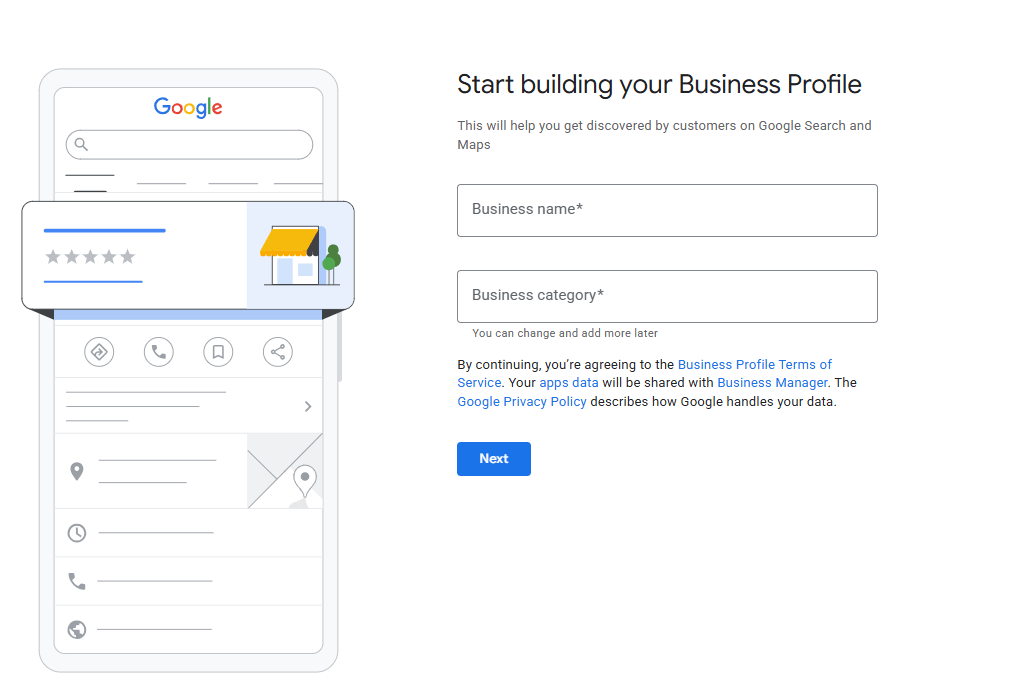
Step 2: Enter Your Business Name
Enter your business name exactly as you want it to appear publicly. Capitalize it correctly and check carefully for any spelling mistakes or typos. Make sure the business name matches your official business documents exactly. Do not add any extra words, keywords, or location names to the business name.
Step 3: Choose Your Primary Business Category
Start typing your category and be sure to select the most accurate match from Google’s list. This choice is the single most influential setting in your profile, for determining which searches you will appear in. Of course, you can add some secondary categories later, but your primary category carries the most weight.
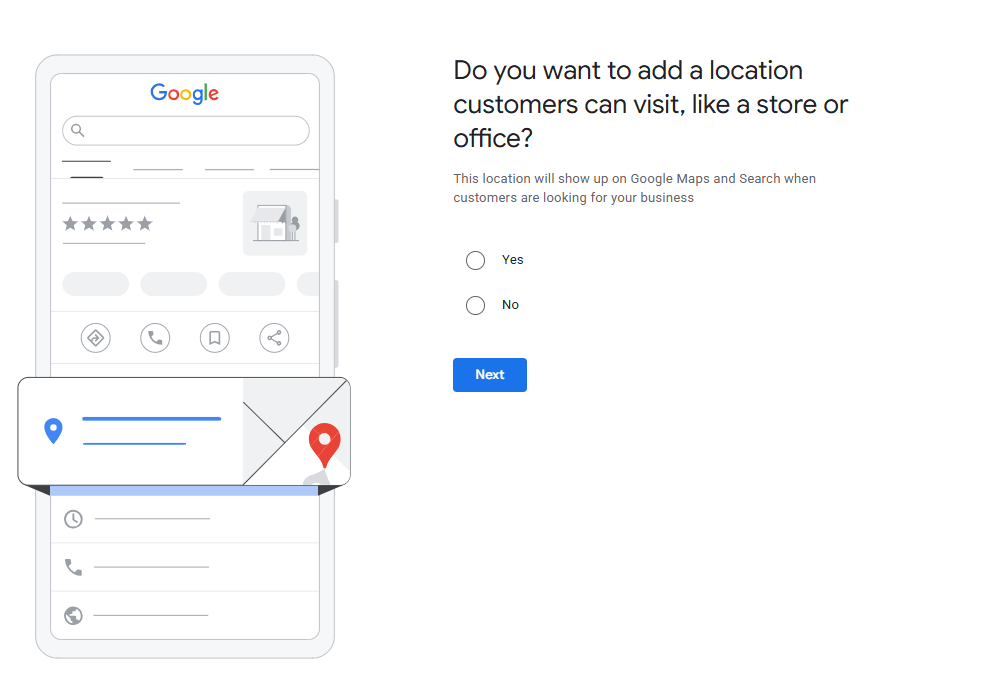
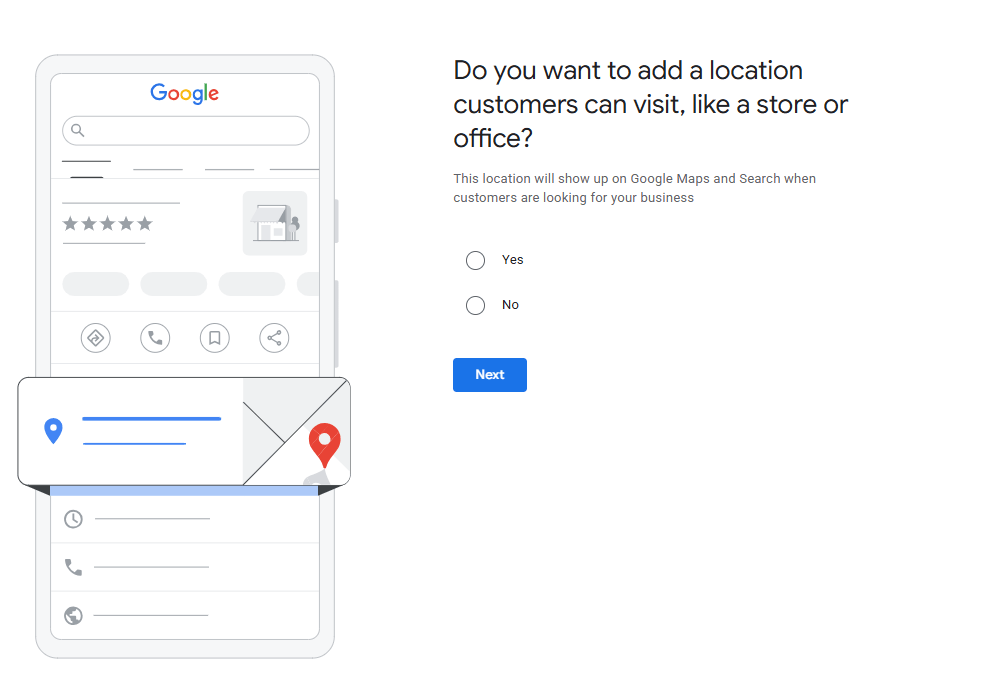
Step 4: Add Your Address or Service Area
Google will ask whether you have a physical location that customers can visit, or whether you travel to your customers as a service-area business. Select whichever applies.
Step 5: Add Your Contact Information
Now, you can enter your primary business phone number, and your website URL. This is the information that will appear directly on your profile, and will be revealed in Google Search results. Make sure the phone number is the same one listed on your website and in other directories.
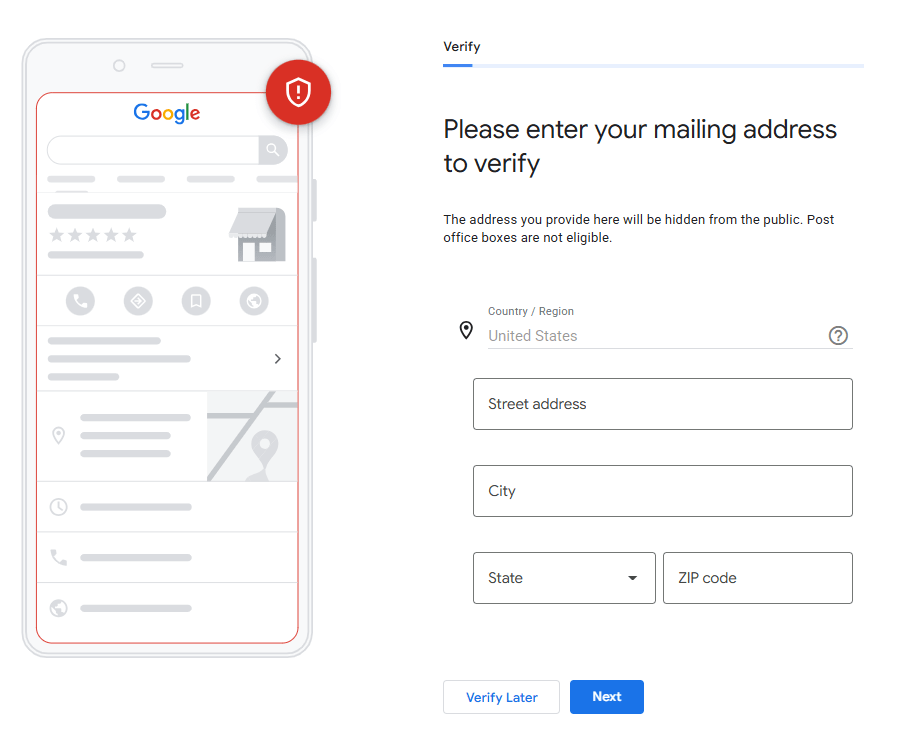
Step 6: Verify Your Business
Verification is a mandatory process that Google performs. Until it is completed, your profile will not appear in Search or Maps. Google offers several methods depending on your business type: a video recording (most common), phone or text, email, postcard (five to fourteen days) etc. Choose whichever method Google offers you .
Note: As you are creating a new profile, do not submit for verification now. We still need to add the business description, operation hours, services, etc. You can skip this step at this stage. We will start the verification process at a later stage.
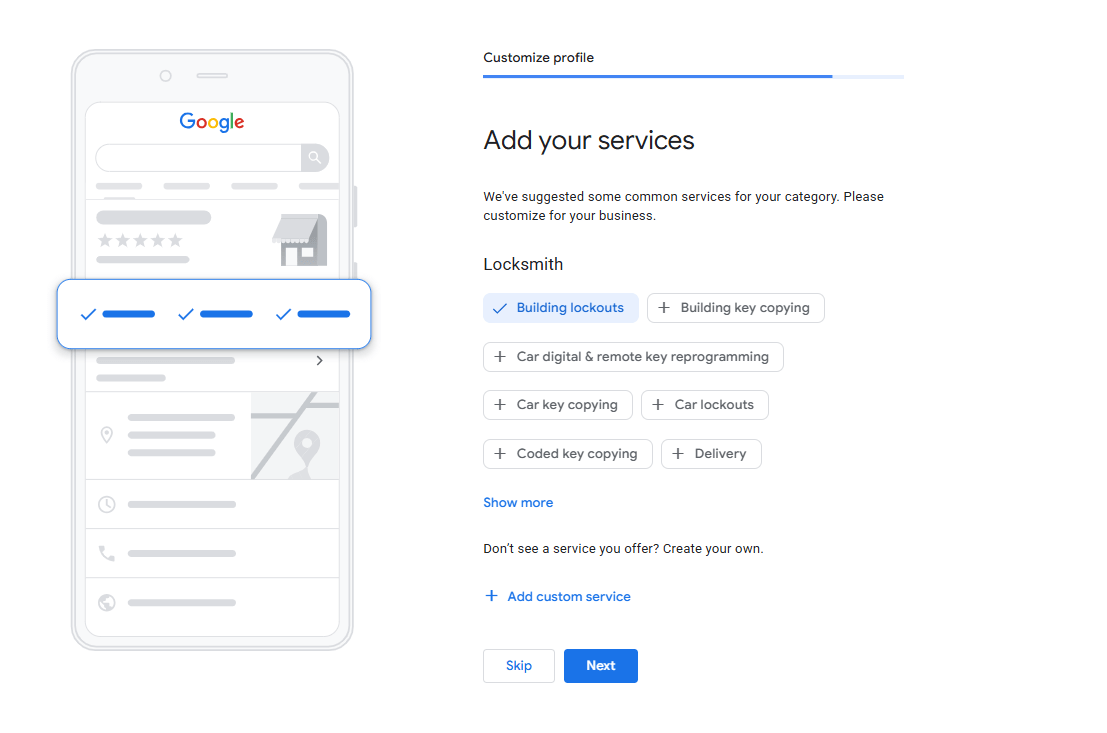
Step 7: Add Services
Add all relevant services from the list provided. If a required service is not listed, you can add it as a custom service.
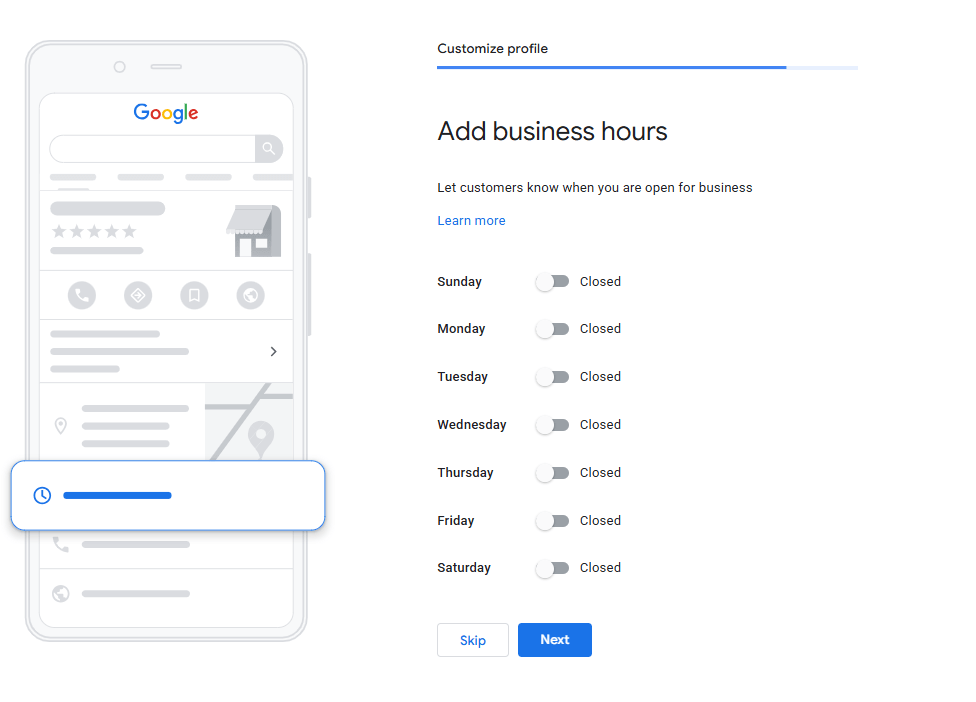
Step 8: Add Your Business Hours
Enter your standard opening hours for each day of the week and clearly state the days you are closed. Providing accurate hours can directly affect the customer experience.
Of course, you can add special trading hours for public holidays and any one-off closures as the circumstance arises, once your profile is live.
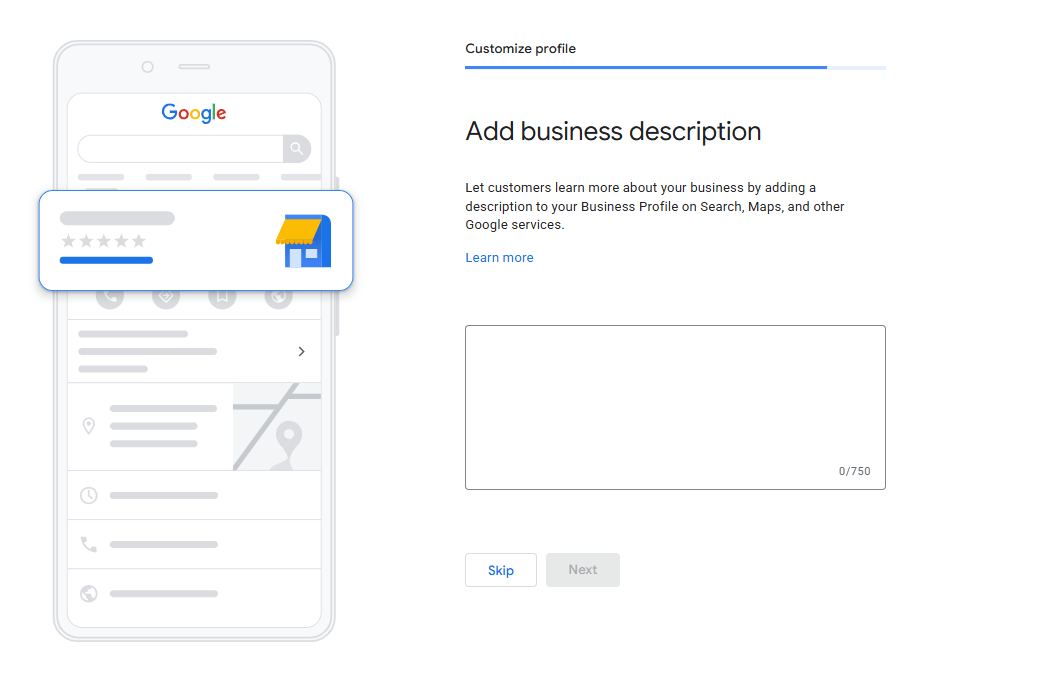
Step 9: Write Your Business Description
Write a clear and concise business description that explains your services, expertise, and the areas you serve. You have up to 750 characters to tell potential customers what your business offers and what makes it valuable.
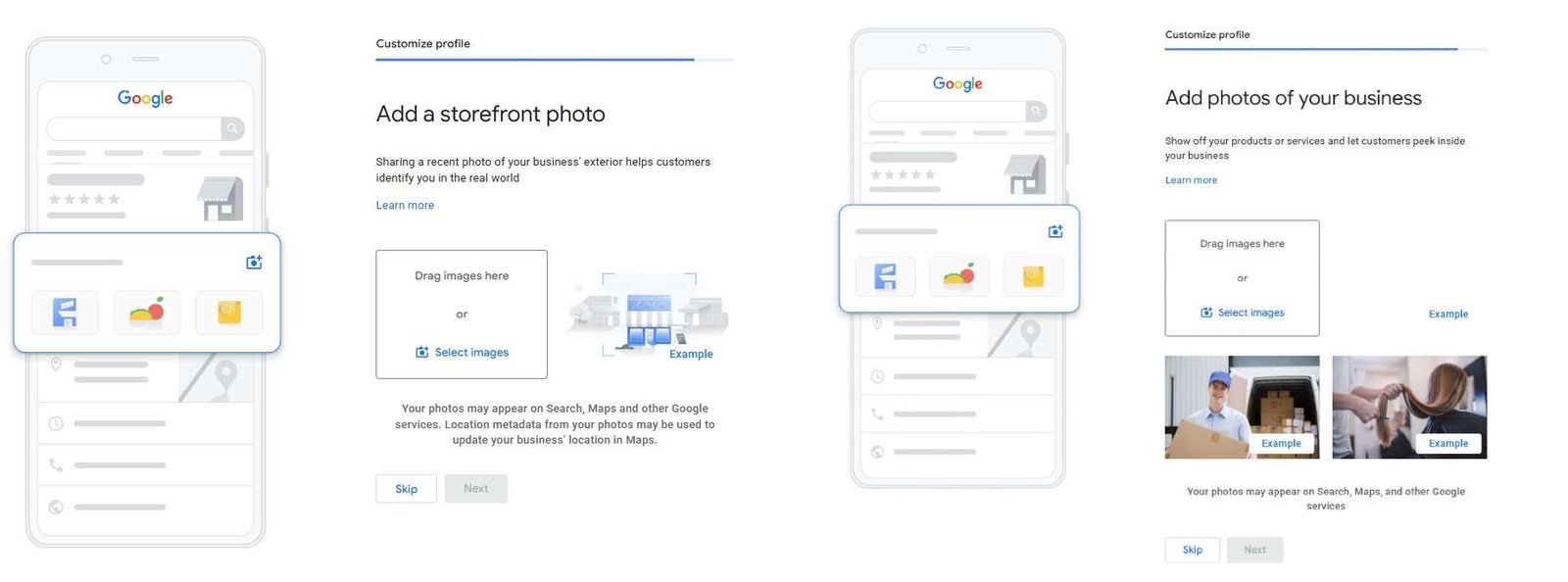
Step 10: Storefont Photo and Busienss Photos
Add storefront photos and business photos to the profile. This is important because it helps Google verify that your business is legitimate and active.
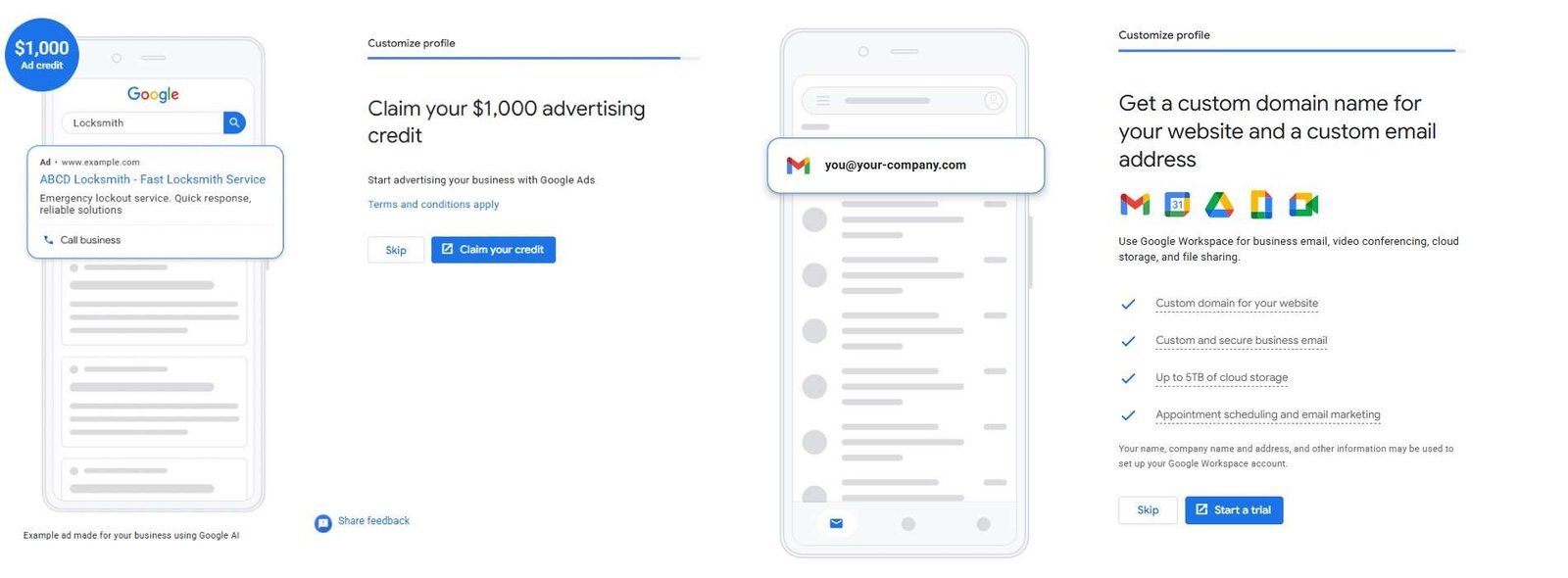
Step 11: Advertising Credit and Google Workplace
You may be eligible to claim up to $1,000 in advertising credits for Google Ads and you can choose Google Workspace services, including custom domains, business email, and cloud storage. These additional services are optional and can be selected at your discretion.
Step 12: Get Verified
At this stage, you will be prompted again for verification since it was skipped earlier. Now that the profile is complete, you can proceed with the verification process.
Common Mistakes to Avoid When Creating a Google Business Profile
Be aware that even a small error during setup can limit your visibility or, in worse cases, lead to a suspended listing. These are the mistakes that come up most often.
Keyword stuffing the business name
Adding keywords to your business name field is one of the most common violations that Google sees. It looks spammy, it breaks NAP consistency, and it can result in your listing being suspended. Only use your real business name, no gimmicks.
Choosing the wrong primary category
Your primary category has more influence on your local rankings than almost any other single setting. Therefore, picking a broad or inaccurate category because it sounds bigger will hurt you. The best strategy is to be specific and accurate.
Skipping or delaying verification
Some business owners complete the setup and then stop the process before verifying. An unverified profile achieves nothing. You have wasted your time and lost a valuable opportunity. It does not appear in searches, and you can’t manage it properly. So, prioritize verification the same day you create the profile.
Duplicate listings
Creating a new listing when one already exists for your business results in duplicate profiles. This understandably confuses Google, and splits your review history. Always search for your business first and claim the existing profile if one is there. You can then update it and expand it to be current and accurate.
Mismatched contact details
If your phone number or address on your GBP differs from what appears on your website or in other directories, it creates an inconsistency that weakens your local SEO. Before you publish your profile, verify that everything matches.
Showing your address when you are a service-area business
If you serve customers at their location rather than a physical storefront, hide your address on your GBP listing. Don’t set a service area that extends more than 50 km or roughly a two-hour drive from your registered business address. Setting an excessively large service area can violate Google’s guidelines and may put your Business Profile at risk of suspension.
Conclusion
Creating an informative Google Business Profile is one of the most impactful things a local business can do to improve its visibility online. It costs nothing, it connects you directly with people searching for your goods or services, and it gives you control over the information that Google shows about your business.
The setup process can take around 15 to 30 minutes. Verification can take anywhere from a few minutes (instantly or by phone) to a couple of weeks (by postcard), but it is non-negotiable. Once verified, your listing goes live and begins working for you in local searches.
In summary, getting the basics right from the start, using your real business name, choosing the right primary category, entering accurate contact details, and completing verification promptly, puts you in a much stronger position than businesses that rush through their setup or leave their profiles incomplete.
Frequently Asked Questions
Is Google Business Profile free?
Yes, your Google Business Profile is completely free to create and manage. With it, you can list your business on Google Search and Google Maps without paying any fees.
Can I create a Google Business Profile without a physical address?
Yes, service-area businesses can create a profile without displaying a public address, by selecting the areas they serve.
How long does Google Business Profile verification take?
Verification time varies based on the method used. Some methods can be completed within minutes, while others may take several days.
Can I manage multiple locations under one Google account?
Yes, you can manage multiple business locations from a single Google account through Google Business Profile Manager.
Do I need a website to create a Google Business Profile?
No, a website is not required. However, adding a website can improve your profile’s credibility and provide customers with more information about what you have to offer.