

If your business appears on Google but you find you can’t edit details, respond to reviews, or update your trading hours, then it could be because your Google Business Profile (GBP) is unclaimed. By claiming it, you regain control over how your business appears in Google Search and Google Maps, and this process usually takes less than 30 minutes.
You may need to claim your profile due to a variety of reasons. Google may have created it automatically, a former employee or agency may still own access, you lost access to the original Google account, or perhaps you acquired a business without receiving ownership of the profile listing.
Once claimed, you can manage all your listed business information, update photos and trading hours, respond to customer reviews, and keep your profile accurate for ranking purposes.
This guide explains what claiming a Google Business Profile entails, and walks you through the steps to take ownership of your listing. After claiming it, you can optimize your Google Business Profile to improve local visibility and attract more enquiries.
Why You Might Need to Claim a Google Business Profile
There are various reasons why business owners find themselves needing to claim their own Google business profile. Understanding which one applies to you helps you approach the process with the right expectations.
Google created the listing automatically
Google builds trading entity profiles using data pulled from business directories, websites, and user submissions. Your business may already have a live listing on Google Search and Google Maps without you ever signing up for one.
A former employee or agency still holds access
Someone has set up the profile under their own Google account and still has ownership, even if they no longer work with your business.
You lost access to the original Google account
If the profile was created under an email address that you no longer use, or can no longer access, you will be locked out of your own business listing.
Business ownership changed
You may have taken over a business without receiving access to the listing. The previous owner has verified the profile before the handover, and never transferred ownership to you.
In every one of these cases, the result is the same: there exists a live public profile that you have no control over. Claiming is how you fix that situation.
What Should You Check Before Starting the Claim Process?
Before you get started, take a few minutes to search for your business and analyze what already exists. This helps you avoid mistakes. You will be able to undertake the process knowing exactly what to expect.
- Search for your business name on Google Search and Google Maps. Check both — a listing can appear in one place but not the other.
- Confirm that the listing belongs to your business. Look at the name, address, and any images or videos to make sure it’s not a duplicate entry or just a similar business.
- Check whether the key details are accurate — specifically the address, phone number, website, and business category. Note anything that needs correcting, so you can update it once you have access.
- Determine whether the profile is ‘unclaimed,’ or is it being managed by another Google account? An unclaimed profile typically shows an “Own this business?” prompt.
- Prepare any documents or information that may be required during verification process — such as a business license, a utility bill, or valid signage you can show in a video recording. Not every verification method requests these items, but having them ready prevents delays.
Step-by-Step: How to Claim Your Google Business Profile
Follow these steps in this order. The process typically takes 10–20 minutes, though verification can add additional time depending on the method used.
Step 1: Navigate to the Google Business Profile Claim Page
Open your browser and visit https://support.google.com/business?p=LC_add . You will see a search bar where you can search for your business listing.
Step 2: Search for Your Business
Now, type your business name into the search bar. Google will show a dropdown list of matching results. Before clicking anything, make sure the listing matches your business exactly — correct name, correct address. Do not proceed with a listing that shows a slightly different name or an old address because even a minor mismatch can cause problems during verification, and may prevent you from successfully claiming the profile.
Step 3: Select Your Business
Once you have confirmed that the listing is yours, click on it. Google will open the existing profile and you can move forward with claiming it. Do not click the “Create” option. You are here to claim an existing business, not to create a new profile.
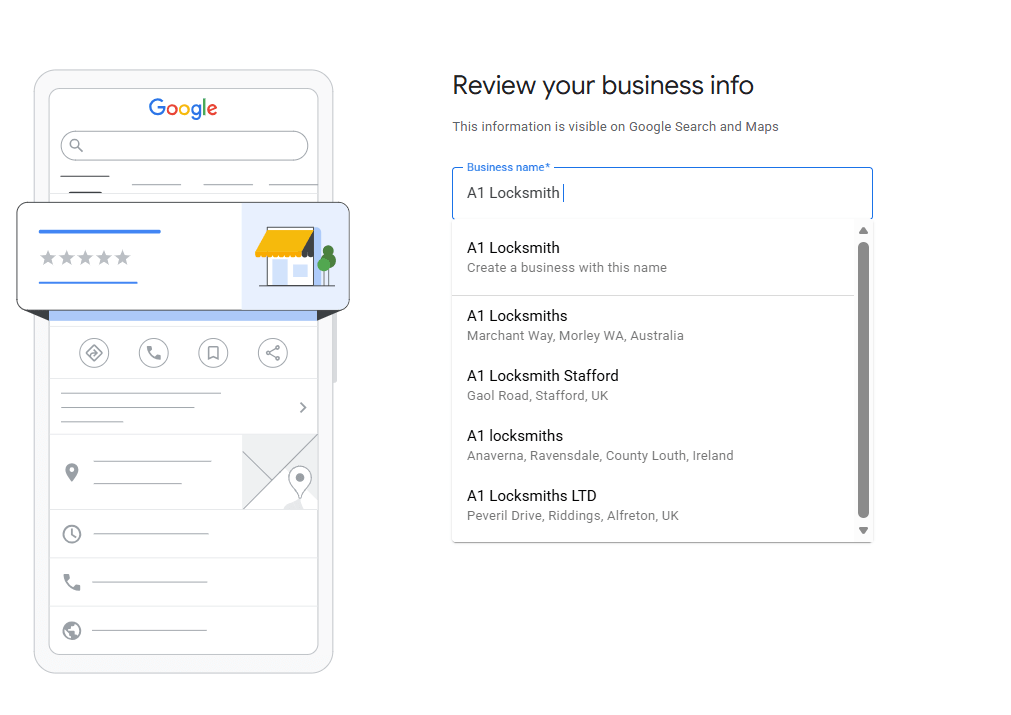
Step 4: Claim the Profile or Request Ownership
If the listing is unclaimed, you will see a “Claim this business” or “Manage this business” button. Click it, and proceed directly to verification.
If the listing is already claimed by someone else, you will not see a claim button. In this case, click “Request access”
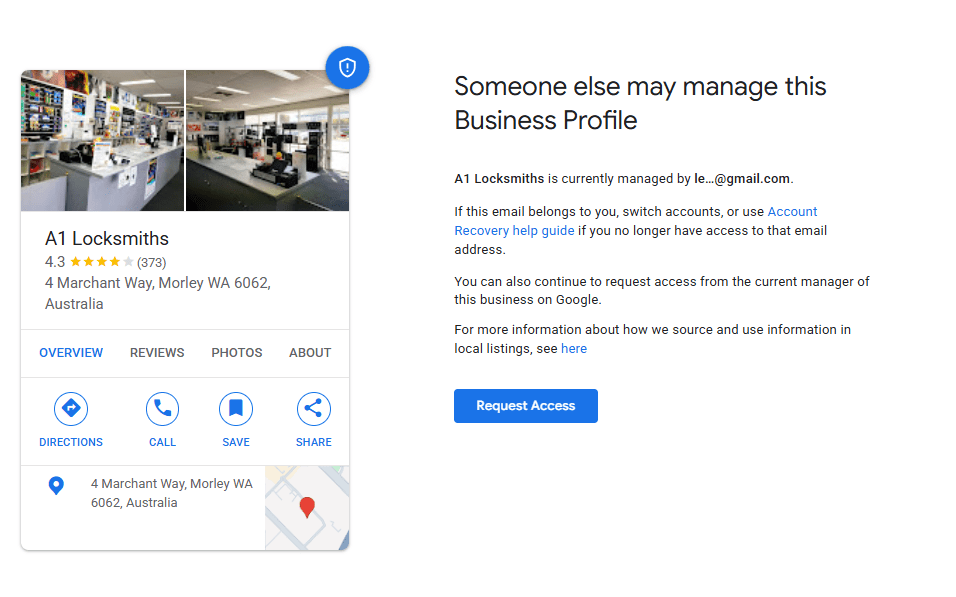
After clicking “Request Access,” you will need to fill in some information and select the appropriate access level. In this case, you should request ownership-level access.
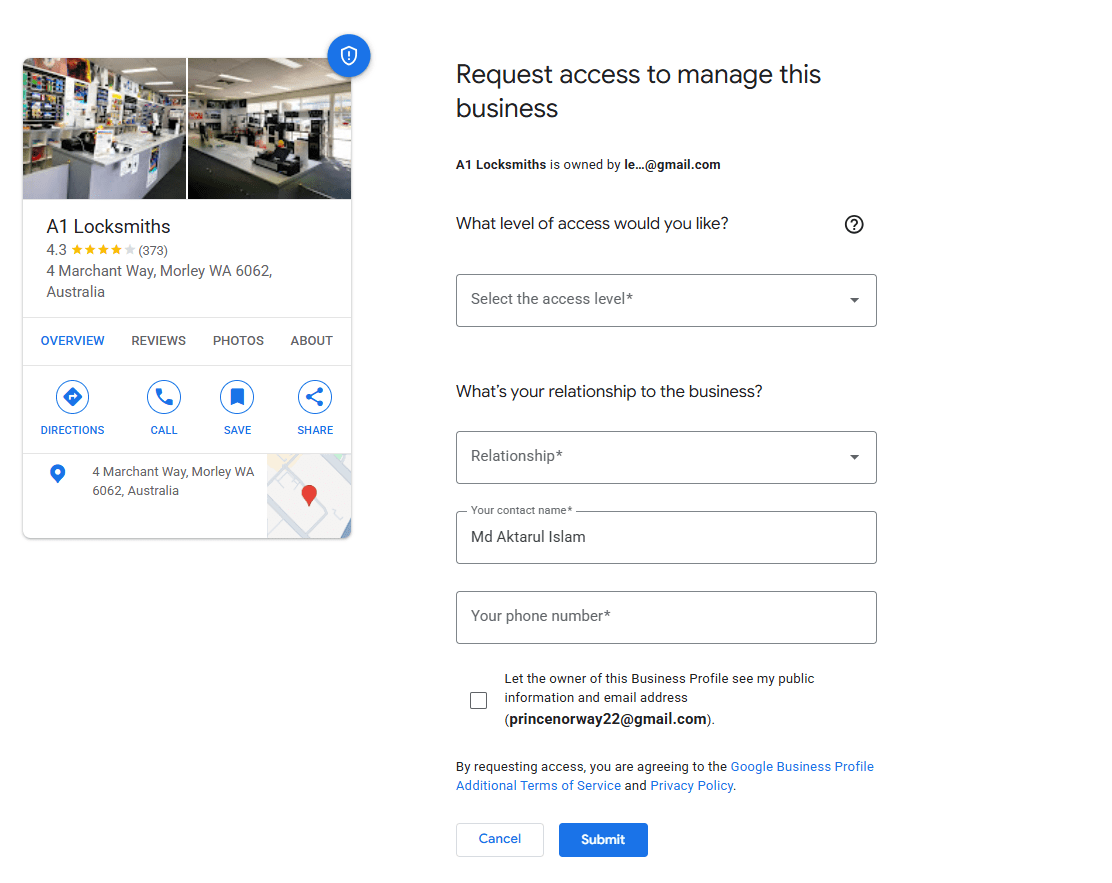
Now, the current owner has three days to respond. If they approve of your claim, then ownership transfers to you. However, if they do not respond within that time, Google will grant you temporary access so you can proceed to verification.
Step 5: Complete Verification
Now that you have access, Google will ask you to verify the business profile. The options available for this process depend on your business type and location — typically by phone or SMS, email, postcard, or video recording. You just need to complete whichever method Google presents to you. Once it is successfully verified, your profile will show as “Published”, and you will have full management access.
What to Do After Claiming Your Profile
Once you have claimed an existing profile, the priority is not rebuilding it from scratch. You need to review what Google already has on the listing and correct whatever is wrong or outdated. Go through each of the following factors and update anything that doesn’t accurately reflect your business today.
- Check that your business name matches exactly how it appears in the real world
- Verify your address is current and formatted correctly
- Confirm your phone number is correct and goes to the right place
- Update your website URL, if it has changed
- Review your business category and switch to a more accurate one if needed
- Correct your opening hours, and remove any outdated holiday hours
- Rewrite or add a business description if the existing one is missing or too generic
- Replace any low-quality, outdated or irrelevant photos with current images
- Remove duplicate or incorrect products and services
- Respond to any unanswered reviews already on the profile
- Check the Q&A section and remove any inaccurate answers
Common Problems When Claiming a Google Business Profile
The profile gets suspended after claiming
It is not uncommon for a profile to get suspended shortly after you claim it. If this happens, check whether your profile complies with Google’s Business Profile latest policies — particularly your correct business name, address, and category. Then submit a reinstatement appeal through the Google Business Profile Help Centre, and provide any documents that confirm your current business details.
If Google does not offer your preferred verification method
The verification options you are offered are determined by Google, based on your business type and location and this cannot be changed manually. So, go ahead and use whichever method Google presents.
Conclusion
Claiming your Google Business Profile is one of the most straightforward things a business can do, to take control of its online presence. The process takes under 30 minutes for most businesses and once your profile is verified, you have full ownership of how your business appears to potential customers searching on Google.
The hard part is not the claiming process itself — it is what you do with the profile afterwards. An uncorrected, unoptimized profile will not perform any better when it’s claimed than what it could when unclaimed. So, use the checklist in the previous section to work through your profile systematically and make sure everything it lists is accurate and current.